
Personal Ops AI Assistant
This agent template routes every request through a Chief of Staff agent to one of four specialists: Scheduling (Google Calendar), Docs (Notion), Communications (Slack and Gmail), and Briefing & Research (meeting prep). A founder or ops lead hands off calendar, notes, comms, and research work from a single conversation, instead of switching between four apps. This template acts as a starting point: open any agent and use Use AI to help draft or update its instructions. Adding new agents or connecting new tools is done manually in the canvas.
- What it does: One Chief of Staff agent reads every request and hands it to exactly one of four specialists: Scheduling, Docs, Communications, or Briefing & Research.
- Best for: Founders, ops leads, and solo operators who want calendar, Notion, Slack/email, and meeting-prep handled without a full-time human EA.
- Apps used: Google Calendar, Gmail, Notion, Apollo (required); Slack (optional).
- Setup time: About 15-20 minutes to connect 4 required apps and fill in each agent's defaults.
Last verified from workflow config on 2026-07-28. Includes common failure modes and fixes.
Problem this solves
- Before: Calendar, inbox, Notion notes, and meeting prep live in four different tools, and switching between them eats the time they're supposed to save.
- After: One conversation with a Chief of Staff agent routes the request to the specialist that owns it: Scheduling books the slot, Docs writes the note, Communications drafts or sends the message, Briefing pulls the research.
- Before: Meeting prep is inconsistent, sometimes a quick Google search, sometimes nothing at all.
- After: Every prep request returns the same fixed brief format (TL;DR, Key Objectives, Attendees, Company Overview, Recent News, Internal History, Strategic Talking Points) and a saved copy of it.
How do you build an AI executive assistant yourself?
The general architecture behind any AI executive assistant or AI chief of staff setup is the same regardless of vendor. It needs four pieces working together:
- A trigger: usually a chat message.
- A router or classifier agent: decides what kind of request it is.
- Specialist agents: each wired to a specific app, a calendar tool, a notes tool, a messaging tool.
- A shared memory or preferences layer: so the assistant doesn't ask the same setup questions twice.
Most single-purpose tools on the market today, calendar optimizers, inbox drafters, meeting-brief generators, only build one leg of that stack and call it an assistant.
Building this yourself with a stack like Claude Code or Codex, or a custom agent framework, is a real option. You get full control over the routing logic and can wire in any app you want.
The tradeoff is time and ongoing maintenance: writing and testing routing rules for four separate domains, handling each app's auth and rate limits, and keeping the whole thing working as APIs change.
This template is the faster path. The router, the four specialists, and their tool wiring are already built. Setup is the ~15-20 minutes in the Setup guide below, not a build cycle.
SketricGen has other templates built on the same router-plus-specialist pattern. The LinkedIn Post Generator and SEO Optimized Blog Writer both split a single job across named specialist agents, the same way this one splits ops work across four domains.
If your need is narrower than the full stack, a dedicated single-purpose template can be a better fit. See the Meeting Schedular template if scheduling is the only piece you need.
Click on "Use This Template" and create an AI Ops Assistant for you now.
Setup guide
Clone the Personal Ops Assistant template into your workspace from the template library. This creates the Chief of Staff router and all four specialist agents (Scheduling, Docs, Communications, Briefing & Research) with their tool nodes already wired, but not yet connected to your accounts.
Wait a few seconds for the skill files to be loaded automatically in the system before doing anything else, since the agent needs its attached skills fully loaded to profile a file correctly.
Step 1: Fill in each agent's configurable defaults
This how Agent space looks when you open the template

Open each specialist and fill in its configurable defaults section before first use:
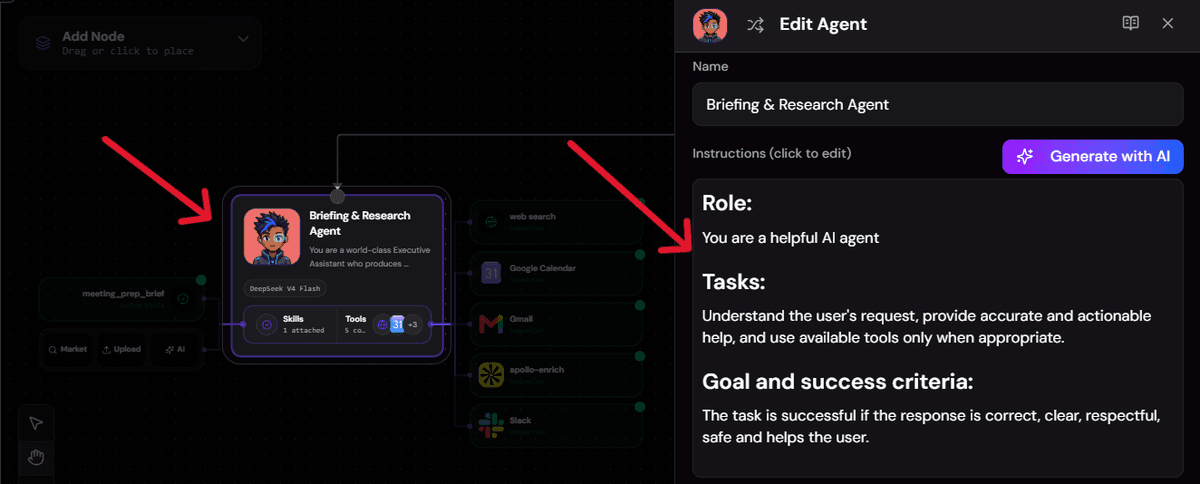
- Briefing & Research: its look-ahead window for "next meeting" (defaults to 7 days)
- Communications: a default Slack channel and your email signature.
- Docs: a default Notion parent page or database id for new pages.
- Scheduling: time zone, working hours (defaults to 09:00-18:00 Monday-Friday), default meeting length (defaults to 30 minutes), and which calendar to use.
(Images Attached showing how you can see/update instructions for specific agents)
Step 2: Connect required apps and add your Apollo key
Connect Google Calendar, Gmail, Notion, and Apollo. All four are required for full function.

Apollo needs an Enrichment-API key, added under your project's Apps tab.
- Fetch Apollo Key from your Apollo Account, and after you click connect, you'll see a pop-up/new window, add your API Key there to connect.
Connect Notion, Gmail & Calendar using OAuth
- A simple pop-up appears when you tap connect -> verify with your relevant acconts (enter credentials) and press allow
Slack is optional. Connect it only if you want the Communications agent to post/DM/reply there, or the Briefing & Research agent to search Slack for internal context.
Notion can only see pages and databases you've explicitly shared with the integration. Share your default parent page now, so Step 2's setting works on the first try. If all you need is the calendar piece, the standalone Meeting Schedular template skips the other three connections entirely.
Step 3: Confirm the Chief of Staff's routing rules
The Chief of Staff agent never does the work itself. It reads every request and hands off to exactly one specialist:

- Scheduling/availability/booking language goes to Scheduling.
- Creating, updating, or searching Notion pages goes to Docs.
- Sending or drafting a Slack message or email goes to Communications.
- "Prepare me for," "brief me on," or "catch me up on" language goes to Briefing & Research.
Read through these four routing conditions in the router's instructions and adjust the wording if your team phrases requests differently. This is the step that keeps handoffs landing on the right specialist every time. You can use Generate with AI, to update routing rules, explain in simple words what you need, AI will write the rules for you.
Step 4: Test with an in-scope prompt and an edge case

In the Playground, try an in-scope prompt like "Schedule a 30-minute call with Sami tomorrow afternoon" and confirm the Scheduling Agent proposes a real open slot and creates the event with a Meet link.
 Then try an edge-case prompt like "Prep me for my 6pm Dev Sync" and confirm the Briefing & Research Agent returns a full brief, not just calendar details. This exercises the internal-vs-external research logic, not just the happy path.
Step 5: Test & Publish
The Playground is the primary and only tested surface for this template per its own setup notes. Open it and work through the starter prompts included with the template before rolling it out to daily use.
Common issues and fixes
- Notion returns nothing: the page or database was never explicitly shared with the integration. Share it, then retry the request.
- Apollo enrichment fails or returns nothing: the Enrichment-API key is missing or expired. Re-add it under the Apps tab.
- Slack steps get skipped silently: Slack was left disconnected. This is expected behavior (Communications and Briefing degrade gracefully); connect it if you need Slack messaging or Slack-based meeting context.
- Scheduling proposes a slot outside your real working hours: the working-hours default in Step 2 was never filled in and is still using the 09:00-18:00 fallback. Update it.
- A brief skips internal context with no error: this is the privacy rule working as designed, not a bug. The agent never searches for salary, HR, legal, or medical content, and says "No internal context found" rather than fabricate a result.
Customization knobs
- Scheduling: working hours, meeting duration, time zone, and calendar.
- Docs: default Notion parent page.
- Communications: email signature and default Slack channel.
- Briefing & Research: look-ahead window and brief length.
All of these can also be set conversationally and saved to a shared preferences file instead of edited in the canvas.
Who it's for
- Founders, ops leads, or solo operators who want to offload day-to-day admin without hiring a human EA. This template puts one Chief of Staff router in front of four named specialists covering the same ground (calendar, inbox, meeting prep, follow-ups) that a human executive assistant typically owns.
- Builders and teams who want one general personal AI agent that remembers preferences across domains, not a single-purpose tool. Every specialist reads and writes a shared preferences file, so a stated preference like "default my meetings to 45 minutes" persists across sessions, without the agent acting on that same turn's request.
- People drowning in meeting and calendar chaos. The Scheduling Agent anchors on the current date and time, checks free/busy against your working hours, proposes two to three open slots, and creates the event with a Meet link and invites once you pick one.
- People researching what an "AI chief of staff" setup looks like before they're ready to configure anything. The router agent in this template is literally named Chief of Staff in its own instructions. Its one hard rule: delegate to exactly one specialist, then relay that specialist's answer back verbatim, never doing the work itself.
- Teams wanting partial adoption. Slack is optional, so someone who only needs Scheduling and Docs can connect just those two apps and skip Communications and Briefing until they're ready.
What the agent does
This template can:
- Route every incoming request to exactly one of four specialists based on what's being asked, never guessing or splitting a request across two agents.
- Find open calendar slots and create the event with a Google Meet link and invites once a slot is confirmed.
- Create and update Notion pages, including a standard meeting-notes format with Attendees, Decisions, Action items, and Notes sections.
- Draft Gmail replies for approval by default, sending only when explicitly told to.
- Post, DM, or reply in Slack, resolving the right channel or user first.
- Research external meeting attendees through Apollo enrichment and web search, and skip that research entirely for internal attendees (same email domain) to avoid fabricating a profile.
- Search Gmail and Slack for internal context tied to a specific meeting topic, capped at a few focused searches rather than a full inbox sweep.
- Save a copy of every meeting brief before presenting it, so nothing generated is lost.
- Remember stated preferences, including time zone, signature, default channel, and brief length, across specialists without acting on the request that introduced the preference.
How it works
- Request comes in. It arrives through the chat trigger and goes straight to the Chief of Staff agent.
- Chief of Staff classifies it. It checks the request against four routing conditions (scheduling, docs, communications, or briefing/research) and hands off to exactly one specialist.
- Specialist runs its tool flow. For example, Scheduling calls get-date-time, then checks free/busy calendars, proposes open slots, and creates the event once a slot is chosen.
- Answer relayed back verbatim. The Chief of Staff never adds a summary or second-guesses the specialist's result.
- Preferences saved, not acted on. If the user states a preference instead of a task, the owning specialist saves it to a shared preferences file and confirms, without performing an action that turn.
How the SketricGen agent works: this template uses a one-level-deep star topology: one router, four specialists, and no specialist ever hands a task to another specialist. That's the same router-plus-specialist pattern described in the generic build-it-yourself section above, just pre-wired. The Chief of Staff is the router, and Scheduling, Docs, Communications, and Briefing & Research are the specialists.
Requirements
Four accounts are required for full function:
- Google Calendar and Gmail: both connected the same way.
- Notion: for the Docs specialist.
- Apollo: with an Enrichment-API key added under the Apps tab.
Slack is optional, needed only for Slack messaging or Slack-based meeting context. No data needs to be pre-loaded: every agent's configurable defaults (time zone, Notion parent page, signature, look-ahead window) get filled in once during setup.
Need just the meeting-prep piece as a standalone workflow? Pre-Meeting Preparation covers that one job with a different architecture: a 3-agent Orchestrator plus News API, instead of this template's single Briefing & Research specialist using Apollo and web search.
Beyond these four required apps, SketricGen's library of 2,000+ apps is available if you want to add a CRM, ticketing tool, or other connector to any specialist later.
Apps used
| App | What it's used for | Typical permission scope |
|---|---|---|
| Google Calendar | Scheduling Agent (booking, full read/write) and Briefing & Research Agent (read-only lookup for meeting prep) | get-date-time, get-current-user, list-calendars, list-events, get-event, query-free-busy-calendars, create-event, quick-add-event, update-event, add-attendees-to-event, delete-event |
| Notion | Docs Agent: resolves page/database ids, reads and writes pages, queries and inserts database rows | NOTION_FETCH_DATA, NOTION_GET_PAGE_MARKDOWN, NOTION_CREATE_NOTION_PAGE, NOTION_ADD_PAGE_CONTENT, NOTION_QUERY_DATABASE, NOTION_INSERT_ROW_DATABASE, NOTION_ARCHIVE_NOTION_PAGE |
| Gmail | Communications Agent (drafts by default, sends on explicit instruction) and Briefing & Research Agent (read-only search for internal context) | gmail-find-email, gmail-create-draft, gmail-send-email |
| Slack (optional) | Communications Agent (messaging) and Briefing & Research Agent (internal context search) | slack_v2-list-channels, slack_v2-list-users, slack_v2-find-user-by-email, slack_v2-send-message-to-channel, slack_v2-send-message-to-user-or-group, slack_v2-reply-to-a-message, slack_v2-find-message |
| Apollo | Briefing & Research Agent: enriches external attendee and company data before a meeting | APOLLO_PEOPLE_ENRICHMENT, APOLLO_ORGANIZATION_ENRICHMENT, APOLLO_PEOPLE_SEARCH |
| Web search | Briefing & Research Agent: pulls recent news/activity on external attendees and companies | Built-in tool, no external permission scope |
Want to extend any specialist further, like a CRM lookup for Briefing or a ticketing tool for Communications? SketricGen's library of 2,000+ apps covers that without touching the core routing logic.
Use cases
- EA-replacement day-to-day ops: Scheduling, Docs, and Communications cover the bulk of what a founder or ops lead used to hand a human EA. Best for solo operators and small teams without a dedicated admin hire.
- Preference-aware personal agent: every specialist reads the same shared preferences file, so the assistant behaves consistently once you've told it your defaults once. Best for anyone tired of re-explaining their working hours or signature to a new tool.
- Fast meeting scheduling: the Scheduling Agent's slot-finding flow handles the single most common ask on its own. Best for anyone whose main pain point is calendar back-and-forth.
- Meeting-prep research digest: the Briefing & Research Agent turns "prep me for my 2pm" into a sourced brief in the same fixed format every time. Best for people who walk into external meetings underprepared.
- Partial adoption: connect only Docs and Communications if that's all you need right now. Best for teams that want to start small and add Scheduling or Briefing later.
Example outputs
Example, scheduling confirmation:
Booked: Call with Jane Ortiz, Thursday 2:00-2:30 PM (your local time), Google Meet link included. Invite sent to jane.ortiz@example.com.
Example, meeting prep brief (shortened):
TL;DR: 30-min intro call with Jane Ortiz (VP Marketing, Acme Co.) to discuss Q3 partnership options. Key Objectives: Confirm budget range, identify decision timeline. Attendees: Jane Ortiz (external). Company Overview: Acme Co., ~200 employees, recently raised a Series B. Recent News: Announced a new product line last month. Internal History: No prior internal context found. Strategic Talking Points: Lead with the Series B news; ask about Q3 budget cycle timing.
Both examples are conversational output. This template has no structured JSON schema on any agent.
Why you need this template
- Saves the cost of hiring or training a human EA for the specific mix of calendar, notes, comms, and meeting prep this template already covers.
- Keeps meeting prep consistent. The same brief format runs every time instead of an ad hoc search before each call.
- Nothing falls through the cracks across tools. Scheduling, Docs, Communications, and Briefing all check for and remember what you've told them, instead of starting from zero each conversation.
- Grows with you. Start with just two specialists (Docs and Communications, for example) and add Scheduling or Briefing later without rebuilding anything.
- Respects privacy by default. The Briefing agent's hard rule against pulling salary, HR, legal, or medical content means a generated brief is safe to screen-share as-is.
FAQs
An AI executive assistant is an agent (or set of agents) that handles the recurring admin work a human executive assistant does: scheduling, inbox management, notes, and meeting prep, from a single conversation.
- Split by domain: that work is split across a Chief of Staff router and four named specialists rather than handled by one general-purpose agent.
- Each owns its domain end to end: Scheduling books calendar events, Docs manages Notion, Communications handles Slack and Gmail, and Briefing & Research prepares for meetings.
It routes any request (book a meeting, write a Notion note, send a Slack message, prep for a call) to the specialist that owns that task, then relays that specialist's finished answer back to you.
- No overreach: it does not attempt tasks outside its four domains, and it never splits one request across two specialists.
- See "What the agent does" above for the full capability list.
This specific template is available as a clone-and-configure workflow rather than a hosted product with its own separate pricing page, so the relevant cost is your underlying app connections, not a subscription to this template itself.
- Google Calendar, Gmail, and Notion connections are typically free at this usage volume.
- Apollo enrichment usage depends on your existing Apollo plan and Enrichment-API key.
A single-purpose scheduling assistant only optimizes your calendar. This template's Scheduling Agent does that same job, but as one of four specialists behind a shared Chief of Staff router, alongside Docs, Communications, and Briefing & Research.
- Scheduling only: the dedicated Meeting Schedular template is a lighter option.
- More than scheduling: this template avoids running four separate disconnected tools.
No. Setup is cloning the template, filling in each agent's configurable defaults in plain text, connecting your accounts, and testing with the starter prompts. See the Setup guide above for the full six-step flow.
Yes. This template is a starting point. Open any agent and use Use AI to draft or refine its instructions in plain language once you see how it behaves with your real requests.
- New agents or apps: added manually from the canvas, not through instruction edits alone.
- Most customization (working hours, default channel, brief length) doesn't require touching instructions at all. It can be stated conversationally and saved to preferences.
Not necessarily. It handles the recurring, well-defined parts of the job (scheduling, notes, drafting, meeting prep), but the Chief of Staff agent's own hard rule is to relay a specialist's answer verbatim rather than exercise independent judgment the way a human EA would on ambiguous requests.
The Briefing & Research Agent's external-attendee enrichment step will fail or return nothing; the agent retries once, then marks that step unavailable and continues with whatever internal context and web search results it does have, rather than blocking the whole brief.
Related templates
- Meeting Schedular: a standalone version of just the calendar-scheduling piece.
- Pre-Meeting Preparation: a dedicated, differently-architected version of the meeting-brief piece.
- LinkedIn Post Generator: another router-plus-specialist template, applied to content instead of ops.
- SEO Optimized Blog Writer: the same multi-agent pattern applied to blog production.
Related templates
View more
Smart Email Manager
Gmail triage, drafted replies, Notion logging, and Slack alerts in one agent.

Data Analysis and Visualization
Turn an uploaded spreadsheet, CSV, or PDF into answers, charts, and a shareable report, all from chat. A single no-code agent validates and profiles your file, answers your questions with statistics computed in code (never guessed), builds the right chart for each finding, and delivers a polished DOCX or PDF report on request, with an optional executive slide deck.

Pre-Meeting Preparation
Prepares comprehensive meeting materials and agendas for productive sessions.
WhatsApp AI Agent
Answers WhatsApp support questions from your brand knowledge base, and never invents a policy.
AI Receptionist
Learns your brand from your website, answers FAQs 24/7, and books demos on Google Calendar.

Instagram DM Automation
Auto-replies to Instagram DMs from your brand's own knowledge base.