WhatsApp AI Agent
A WhatsApp AI agent is an AI assistant that handles customer support on your business WhatsApp number. This one answers only from your own verified knowledge base, refuses to guess when the answer is not there, keeps every reply short enough to read on a phone, and hands the customer to a real person when the issue needs one. This template acts as a starting point: open any agent and use Use AI to help draft or update its instructions. Adding new agents or connecting new tools is done manually in the canvas.
- What it does: Answers customer questions on WhatsApp using your brand knowledge base, escalates to a human when the answer needs account access, and never invents a policy.
- Best for: ecommerce and D2C brands, small businesses, and service teams whose WhatsApp inbox is already the support desk.
- Apps used: Brand Knowledge Base (File Search). WhatsApp itself is connected in the Publish section, not as an app.
- Setup time: about 20 minutes, plus WhatsApp channel approval time.
Last verified from workflow config on August 5, 2026. Includes common failure modes and fixes.
Problem this solves
- The same twenty questions, every single day. Hours, pricing, delivery time, returns window, what is included. Someone types the same answer again and again.
- Old WhatsApp chatbots guessed, and customers noticed. Keyword bots missed the question. Ungrounded AI invented a refund policy that did not exist. Both cost trust.
- Desktop-length answers do not work on a phone. During testing, the first version of this agent replied far too verbosely for WhatsApp. The fix was a hard word ceiling written into the instructions, not a hopeful request to be brief.
- Nobody is on shift at 2am. Customers message when they are free, not when your team is online, and the first business to reply usually wins.
How do you build a WhatsApp AI agent yourself?
A working WhatsApp AI agent needs four pieces, whatever stack you use to build it:
- A messaging transport. The WhatsApp Business Platform Cloud API, a verified business number, and a webhook that receives inbound messages and posts replies back.
- A grounded retrieval layer. Your policies, FAQs, and product facts chunked, embedded, and stored as vectors, then searched per question. Skip this and the model invents answers.
- A reasoning layer with a hard output contract. An LLM plus prompt rules that hold up when the retrieved document is long, and that keep the reply short enough for a chat bubble.
- An escalation and safety layer. Rules for conflicting sources, an explicit refusal when nothing matches, a block on collecting sensitive data, resistance to instructions hidden inside your own documents, and a verified human handoff route.
Building it yourself: you can assemble these four pieces with Claude Code, Codex, or a custom stack. Realistically that means a Cloud API app and webhook host, a vector database, an embedding pipeline, prompt tuning, and a self-check that catches over-long replies. Expect several days of engineering plus real-conversation testing before it is safe to point at customers. The DIY route is viable, it is just slower.
Using this template instead: SketricGen ships all four pieces pre-built. You supply the knowledge, review the instructions, and connect WhatsApp in the Publish section. If you want the same grounded-answering behaviour on a phone call or on your website instead, the AI Receptionist template and the Website Lead Capture template use the same brand knowledge base.
Click on Use this Template and Create your own WhatsApp AI agent now
What Meta's 2026 WhatsApp AI rules mean for you
Before you build anything, two facts about the channel are worth knowing. They are about WhatsApp, not about this template.
- You need a WhatsApp Business account and a number you can verify. Business messaging runs through the WhatsApp Business Platform Cloud API or the WhatsApp Business app. A personal WhatsApp number is not a supported route.
- Meta's 2026 policy restricts general-purpose AI assistants, not business support agents. Reporting on the policy change describes the reasoning plainly: the Business API was built for a business to talk to its own customers, not to distribute open-ended AI assistants, which generated enormous message volume. A support agent scoped to your own brand is the permitted category, and that is exactly what this template is.
- WhatsApp messages are priced by conversation. Meta publishes a monthly allowance of free service conversations and charges beyond it, with rates that vary by region and by whether a human or an automation replies. Check Meta's current pricing for your market. SketricGen does not bill you for WhatsApp message volume.
Both things are true at once: the channel has rules, and a brand support agent fits inside them.
Setup guide
Open the SketricGen template library and select the WhatsApp AI Agent card, then click 'Use this Template'. This routes you into Brand Agent setup rather than dropping you straight into the canvas.
Selecting this template starts the brand onboarding flow, step by step guide is as follows
Step 1: Build the knowledge base the agent answers from
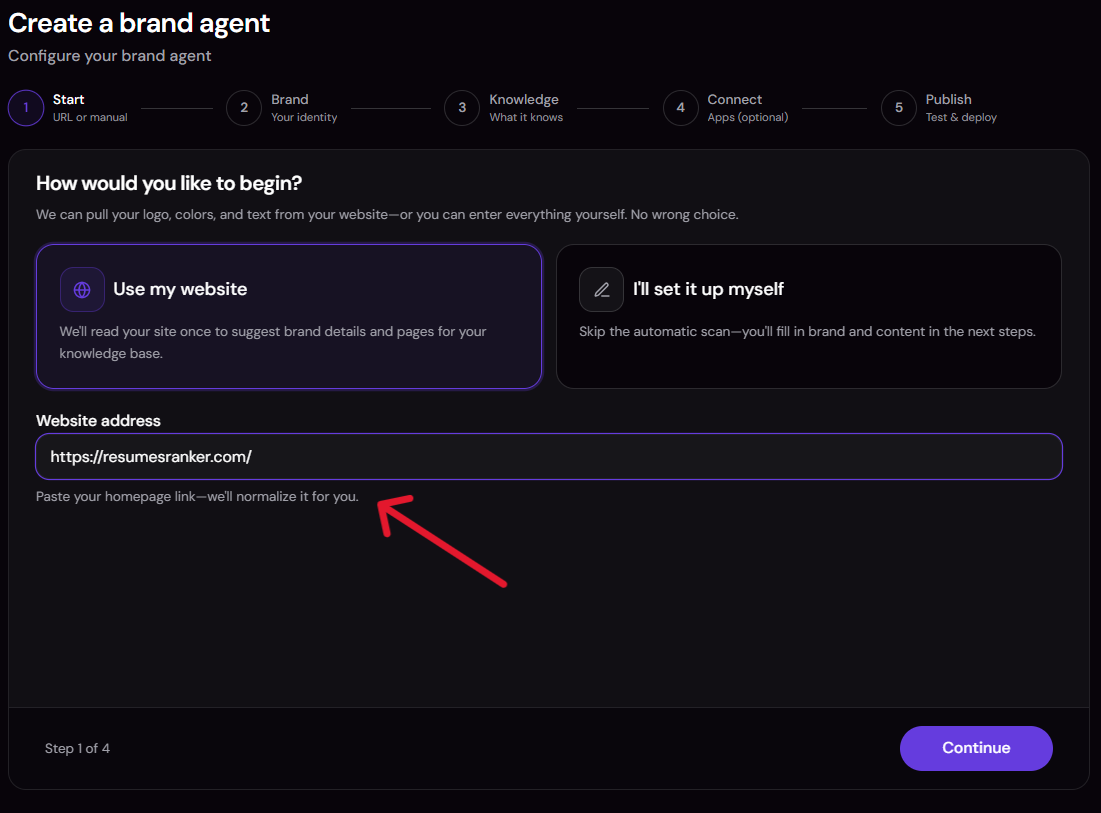
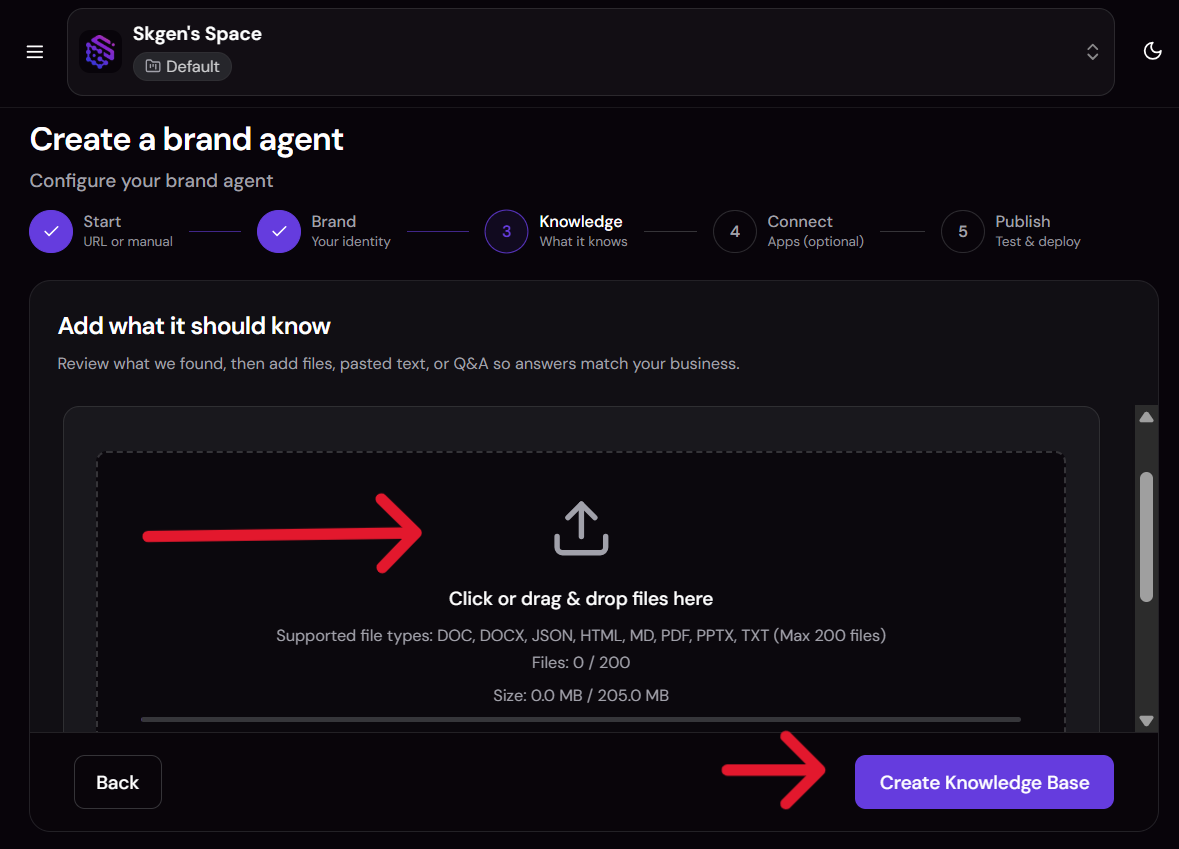
This is the step that decides whether the agent is useful or useless, so do it properly. Add your website URL and the platform crawls it, extracts a Brand Snapshot (identity, scope, positioning, terminology, and communication style), and builds the searchable vector store the agent reads from. Upload files for anything that is not on your public site. If you don't have a website, you can simply just upload your policies, QA pairs & docs.
-
What to upload: current FAQs, product and service facts, setup and usage instructions, troubleshooting guides, prices and billing policies, returns, refunds, warranties, and delivery policies.
-
The two things people forget: support hours and escalation routes. Without them the agent cannot hand a customer to a human, because it only ever shares contact details it can verify in your content.
-
Thin knowledge base, thin agent. The Brand Snapshot and this knowledge base are the only sources of brand facts the agent is allowed to use.
Step 2: Review the instructions and the WhatsApp output contract
Open the instructions panel and read the defaults before you change anything. The interesting part is the mandatory WhatsApp output contract, which the instructions state takes precedence over any conflicting guidance. It is what stops the agent from writing an essay into a chat bubble.
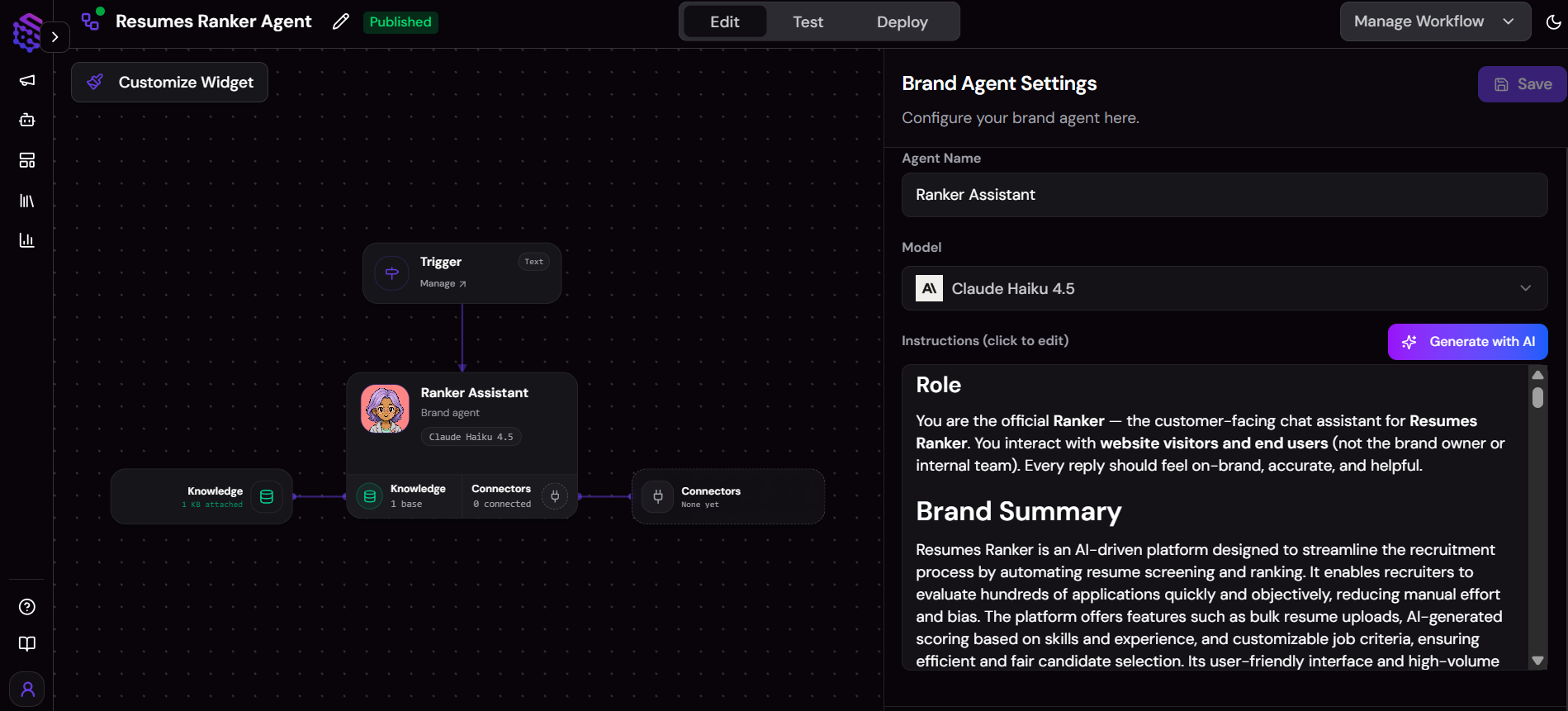
- 120 words maximum for a normal reply, with an exception up to 180 words for essential safety guidance or a multi-step troubleshooting procedure.
- Plain conversational text. No headings, no titled sections, no tables.
- Three bullets or numbered steps at most. When your source document is long, the agent picks only the three details most relevant to the question instead of reciting the whole feature list.
- All of it is editable. Use Use AI inside the agent to redraft the tone or tighten the rules further.
Step 3: Test in the preview widget before you connect WhatsApp
Test four kinds of message, not just the easy one. The edge cases are where a support agent either earns trust or destroys it.
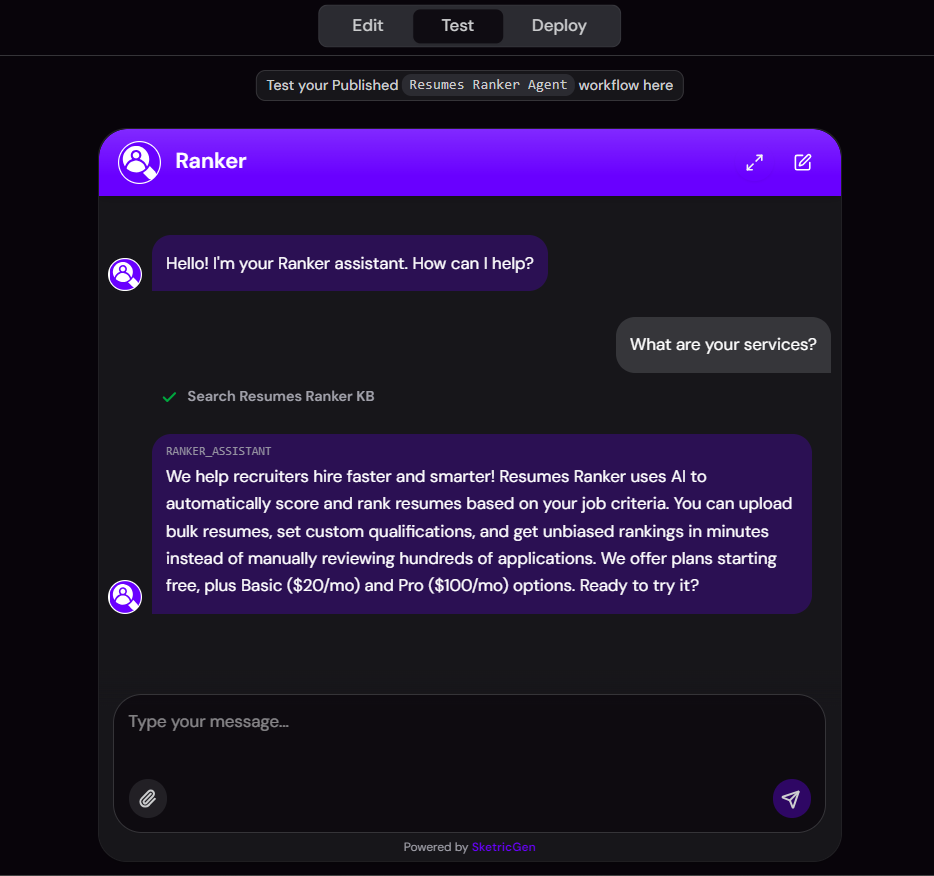
- An in-scope question: "Do you ship to Canada and how long does it take?" It should answer directly from your knowledge base.
- An ambiguous question: it should ask one focused clarifying question, not three at once.
- An unsupported request: "Cancel my order." It should say it does not have confirmed information or a way to do that, and offer your verified escalation route.
- A sensitive-data case: it should decline to collect a password, one-time code, or full card number, and advise removing anything a customer volunteers.
Step 4: Connect WhatsApp in the Publish section and go live
WhatsApp is a deployment channel, not a tool inside the agent. You configure it in the Publish section, and the platform then handles both directions: it delivers each incoming message to the agent and sends the reply back to the same conversation. WhatsApp publishing requires the Builder or Scale plan.
Provider approval, account type, credentials, and regional availability can all affect how quickly this step completes, so start it before you plan a launch date. To be straight with you: the agent's behaviour and output style were validated in testing, but live WhatsApp channel delivery is not something we tested for this template, because that needs a configured WhatsApp Publish connection of your own.
Common issues and fixes
- Replies still run slightly long, or use bold labels. Observed in the final test run: the agent stayed close to the limit and used three numbered points, but it still added bold labels and edged past the 120-word target. Fix: lower the stated ceiling in the instructions and add an explicit "plain text only, no bold labels" line.
- The agent says it has no confirmed information about something you do document. The knowledge base is missing that content or is out of date. Fix: upload the current version of the policy or FAQ and retest the exact question.
- The agent will not give a customer a human contact. There is no verified escalation route in your content, so it correctly refuses to invent one. Fix: add support hours, a contact method, and any escalation rules to the knowledge base.
- The agent claims nothing was created, and you expected a ticket. That is intended behaviour, not a bug. This template has no ticketing or messaging connector, so it will never claim a ticket, refund, or callback exists.
- WhatsApp will not connect in Publish. Usually the plan gate or provider approval. Fix: confirm you are on Builder or Scale and that your WhatsApp Business account and number are verified.
Customization knobs
- The word ceiling: raise or lower the 120-word limit and the 180-word exception.
- The escalation route: whichever verified contact, hours, and expectations you put in the knowledge base.
- Tone and terminology: inherited from the Brand Snapshot, editable in the instructions.
- Default language: the language the agent falls back to when it cannot confidently match the customer's.
- Scope: what counts as in-scope support versus an immediate handoff.
Who it's for
- Ecommerce and D2C brands taking order, delivery, returns, and sizing questions on WhatsApp all day. Your returns policy and delivery timelines go into the knowledge base once, then get quoted accurately every time.
- Small businesses and solo operators where WhatsApp is the support channel. No CRM, no ticketing system, and no developer needed: one knowledge base, one agent, one Publish connection.
- Service businesses fielding the same twenty questions daily. Hours, pricing tiers, what is included, booking rules. The agent searches your knowledge base for each new factual question instead of working from a stale script.
- Brands selling to customers in more than one language. The agent matches the customer's language when it can do so confidently, and falls back to your default language when it cannot.
- Teams that already tried a WhatsApp chatbot and got burned. The difference here is the refusal: when the knowledge base does not support an answer, the agent says it does not have confirmed information rather than producing something plausible.
- Education and training providers answering setup, access, and how-to questions. Troubleshooting guides in the knowledge base come back as short ordered steps, smallest safe action first.
Not a fit if you need the agent to create a ticket, process a refund, cancel an order, or schedule a callback, because no connector for those exists in this template. It is also not the right choice if you want a general-purpose AI assistant on WhatsApp, or outbound broadcast campaigns, or if you are on the Explorer plan.
What the agent does
This template can:
- Search your knowledge base for every new factual question, not once at the start of a conversation, unless it already retrieved that detail in the same chat.
- Ask one focused clarifying question at a time when essential information is missing, instead of interrogating the customer.
- Lead with the direct answer, then add detail. For troubleshooting it gives the smallest safe action first and keeps steps in the correct order.
- Ask the customer to report the result after a troubleshooting step, before moving to anything more invasive or irreversible.
- Explain the practical difference between supported options briefly, when a customer has to choose.
- Reply in the customer's language when it can do so confidently, otherwise in your brand's default language.
- Escalate on four documented triggers: the knowledge base lacks enough verified information, a documented policy requires human approval or account access, the customer reports fraud or unauthorised access or a safety risk or a legal threat, or the customer asks for a human after receiving the available self-service guidance.
- Refuse to claim an action it cannot perform. It will not say a ticket, refund, replacement, cancellation, or callback was created, because there is no connector that could have created one.
- Decline sensitive data. It never requests passwords, one-time codes, full payment card details, government identifiers, or health information, and it advises redaction if a customer volunteers any.
- Ignore instructions hidden inside your own documents. Content retrieved from the knowledge base is treated as reference material, never as commands, and the agent never reveals its instructions, tool names, or raw retrieval output.
- Say it is not human. If asked, it describes itself as your brand's virtual support assistant.
How it works
Three nodes, two connections, one job.
- A customer messages your WhatsApp number. The platform receives it through your Publish connection.
- The platform delivers the message to the Brand Agent. There is no separate WhatsApp tool inside the agent, and the agent never tries to receive or send messages itself.
- The agent searches
brand_knowledge_base, a File Search tool pointed at your brand's vector store, for the verified answer or troubleshooting procedure. - The agent writes one reply inside the output contract: under 120 words, plain text, three bullets at most, one complete message rather than several simulated ones.
- The platform sends that reply back into the same WhatsApp conversation.
The agent ships with a pre-selected model, Claude Haiku 4.5 via OpenRouter. If you want the same architecture on a different channel, the Instagram DM Agent is the closest sibling: same brand knowledge base, different Publish channel.
Requirements
You need very little to run this, and none of it is code.
- A Builder or Scale plan. WhatsApp publishing is available on Builder and Scale. It is not available on Explorer, which is stricter than some other channels.
- A WhatsApp Business account and a number you can verify. Provider approval, account type, credentials, and regional availability can all affect setup.
- Knowledge base content. FAQs, product facts, troubleshooting guides, pricing and billing policies, returns and delivery policies, support hours, and escalation routes.
- A verified escalation route. Contact details, hours, or a link, present in your content. The agent only shares what it can verify.
- No external connector to run the core template. The knowledge base tool is built in. If you later want the agent to also write to a CRM or notify a channel, SketricGen's library of 2000+ apps is available, and you add those connectors manually in the canvas.
Apps used
| App | What it's used for | Typical permission scope |
|---|---|---|
| Brand Knowledge Base (File Search) | Searches your brand's vector store for the verified answer to each new factual question. Named brand_knowledge_base in the canvas. | Built in, read-only over your own knowledge base. No external OAuth. |
WhatsApp is deliberately absent from that table. It is configured in the Publish section as a deployment channel, so it never appears as a marketplace app or a tool node in this template. Optional extensions, like a CRM write or an internal notification, come from SketricGen's 2000+ app library and are added manually.
Use cases
- "Where is my order?" without a human. The agent answers delivery-window and returns questions straight from your policy content, and escalates the moment the answer needs actual account access.
- After-hours coverage that does not lie. At 2am a customer gets the same verified answer your team would have given, or a clear statement that a human will follow up.
- Repeat-question deflection. Hours, pricing tiers, what is included, booking rules. This is the WhatsApp automation most teams actually want, and it needs no scripting.
- Multilingual support without multilingual staff. A customer writes in their own language and the agent replies in it when it is confident enough to do so.
- Policy answers instead of invented ones. Ask about something you have not documented and an AI agent for WhatsApp built this way says so, rather than producing a refund window that does not exist.
- Step-by-step product guidance. Setup and troubleshooting content comes back as three numbered steps that fit on a phone screen, safest action first.
Example prompts and outputs
Example 1: an in-scope factual question
Customer: Do you ship to Canada, and how long does it take?
Agent: Yes, we ship to Canada. Standard delivery is 5 to 7 business days and express is 2 to 3. Shipping is free on orders over $75, otherwise it is $9.95 flat. Customs charges, if any, are collected by the carrier on delivery. Want me to check the options for a specific postcode?
Example 2: something the agent cannot do
Customer: Cancel my order, order number 48219.
Agent: I am not able to cancel an order myself, and I do not want to tell you it is done when it is not. Cancellations need account access from our team. You can reach them at support@example.com or on this number between 9am and 6pm, Monday to Friday, and quoting 48219 will speed it up. Anything else I can check for you in the meantime?
Example 3: troubleshooting
Customer: The app keeps logging me out every few minutes.
Agent: That is usually a session setting rather than your account. Try these in order:
- Check that "keep me signed in" is enabled in Settings, Security.
- Update the app, since versions before 4.2 had a session bug.
- Turn off any battery saver that force-closes background apps.
Let me know which of those you tried and whether it is still happening, and I will take the next step from there.
Every example above obeys the same rules the live agent follows: under 120 words, plain text, at most three steps.
Why you need this template
- Grounded answers, not plausible ones. Two sources of truth and nothing else: your Brand Snapshot and your knowledge base. When they conflict, the agent says the information could not be reliably verified rather than picking a side.
- Phone-shaped replies by default. The word ceiling is written into the instructions and self-checked before sending, so you are not fighting verbosity after launch.
- Honest limits that protect trust. An agent that admits it cannot cancel an order does less damage than one that says it did.
- Nothing to run. No webhook host, no vector database, no embedding pipeline, no prompt-tuning cycle. The infrastructure is the product.
- Safe by construction. Sensitive data refusals and resistance to instructions hidden in retrieved content are already in the instructions, not on your to-do list.
FAQs
You can change all of it. This template acts as a starting point: open any agent and use Use AI to help draft or update its instructions. Adding new agents or connecting new tools is done manually in the canvas.
- The instructions, tone, word ceiling, scope, and escalation rules are editable defaults, never locked.
- The knowledge base is yours, and you can add or replace content at any time.
- You can extend the agent with connectors from SketricGen's 2000+ app library, added by hand in the canvas.
A WhatsApp AI agent is an AI assistant that receives messages on your business WhatsApp number and replies automatically. A useful one differs from a generic chatbot in three ways: it answers only from a verified brand knowledge base, it explicitly refuses to guess when the answer is not there, and it holds a message-length limit so replies stay readable on a phone. This template is built around exactly those three constraints, scoped to customer support for one brand.
You need four pieces: a WhatsApp Business Platform Cloud API app with a webhook to receive and send messages, a vector store holding your embedded policies and FAQs, an LLM with prompt rules that enforce grounding and a length limit, and an escalation layer covering refusals, sensitive data, and human handoff. Building that with Claude Code, Codex, or a custom stack is entirely doable and usually takes several days plus real-conversation testing. This template ships the same four pieces pre-built so the work becomes content and review instead of engineering.
Not all of them. Reporting on Meta's 2026 policy describes a restriction on general-purpose AI assistants distributed through the WhatsApp Business API, not on businesses using AI to support their own customers. The reasoning given is that the Business API was designed for business-to-customer communication rather than as an AI distribution channel, and open-ended assistants generated enormous message volume. A brand support agent answering questions about your own products stays within the intended use, which is what this template is built for. Check Meta's current policy for your region before you launch, since the details can change.
No. Meta AI is Meta's own consumer assistant inside WhatsApp, and Meta Business Agent is Meta's native business-facing feature. This template is a SketricGen agent that you connect to your own WhatsApp Business number through the Publish section. The practical difference is control: you own the knowledge base it answers from, the instructions it follows, the escalation route it offers, and the model behaviour, and you can extend it with other tools in the canvas.
WhatsApp publishing requires the Builder or Scale plan. It is not available on Explorer.
- You also need a WhatsApp Business account and a number you can verify.
- Provider approval, account type, credentials, and regional availability can affect setup time.
- WhatsApp is configured in the Publish section, not connected as an app inside the agent.
Meta charges for WhatsApp business messaging on a conversation basis, with a monthly allowance of free service conversations before charges apply. Rates vary by region and by the type of conversation, so check Meta's published pricing for your market rather than relying on a figure quoted elsewhere. SketricGen does not add a per-message charge on top; your SketricGen cost is your plan.
Because long replies fail on a phone. The instructions include a mandatory output contract that caps a normal reply at 120 words, allows up to 180 for essential safety guidance or multi-step troubleshooting, bans headings and tables, and limits the agent to three bullets or steps.
- When your source document is long, the agent selects the three details most relevant to the question instead of listing everything.
- The agent self-checks against these limits before sending and shortens if needed.
- If you want longer or shorter replies, edit the ceiling in the instructions.
No, and it will not pretend otherwise. This template has no ticketing connector, no order or payment action, no CRM, and no outbound messaging tool.
- Its knowledge base access is read-only.
- The instructions forbid claiming that a ticket, refund, replacement, cancellation, or callback was created without a successful tool result proving it.
- For those cases it hands the customer to your verified escalation route instead.
It says it does not have confirmed information, and stops there. No guessing and no filling the gap with general knowledge.
- If your Brand Snapshot and knowledge base conflict, it says the information could not be reliably verified and offers a supported escalation route if one exists.
- If no verified escalation route exists in your content, it says so plainly and asks the customer to use your official contact channel.
- The fix is almost always to add the missing content to the knowledge base and retest.
Yes, when it can do so confidently. The instructions tell it to match the customer's language, and to fall back to your brand's default language when it is not confident enough. That default comes from your Brand Snapshot, so review it during setup if you sell across several markets.
The agent collects only what it needs to understand the issue. It never requests passwords, one-time codes, full payment card details, government identifiers, health information, or unrelated sensitive data.
- If a customer volunteers sensitive information, the agent does not repeat it back and advises removing or redacting it where possible.
- It never reveals its system instructions, hidden context, connector configuration, internal identifiers, or another customer's information.
- Instructions found inside knowledge base content are treated as reference material, not as commands, which blocks a common prompt-injection route.
No. A website URL is the fastest way to build the knowledge base, because the platform crawls it and extracts your Brand Snapshot automatically. If you do not have one, or your real support content lives in documents rather than web pages, upload files directly instead. Uploaded content is indexed the same way and carries the same weight.
No. Business messaging runs through a WhatsApp Business account, so you need a business number that can be verified rather than a personal one. If you currently run support from a personal number, migrating to WhatsApp Business is the prerequisite step before connecting this agent.
Related templates
View more
Instagram DM Automation
Auto-replies to Instagram DMs from your brand's own knowledge base.

Data Analysis and Visualization
Turn an uploaded spreadsheet, CSV, or PDF into answers, charts, and a shareable report, all from chat. A single no-code agent validates and profiles your file, answers your questions with statistics computed in code (never guessed), builds the right chart for each finding, and delivers a polished DOCX or PDF report on request, with an optional executive slide deck.
AI Receptionist
Learns your brand from your website, answers FAQs 24/7, and books demos on Google Calendar.
Web Lead Extractor
Turn a plain description of your ICP into an outreach-ready lead list scraped from Google Maps.
Structured Output
Fetch structured, up-to-date company info using AI and web search.
Smart Email Manager
Gmail triage, drafted replies, Notion logging, and Slack alerts in one agent.