AI Receptionist
AI Receptionist is a no-code AI agent for FAQs and booking. Paste your website URL and it extracts your brand snapshot (tone, logo & colours, offerings, policies, docs and positioning) and builds a searchable knowledge base from your site content. One agent then handles two jobs: answer visitor questions from your brand data, and books a demo on Google Calendar the moment a visitor asks. This template is a starting point — edit the instructions, connect the calendar app, or reshape the flow to match your business.
- What it does: Learns your brand from your website (or uploaded docs), answers visitor FAQs from that knowledge base, and books demos on Google Calendar at the exact time requested.
- Best for: small businesses, agencies, SaaS teams, and service brands that need 24/7 first-contact coverage for questions and demo requests, without a phone system.
- Apps used: Brand Knowledge Base (auto-built from your site), Google Calendar
- Setup time: 5-10 minutes
Last verified from workflow config, July 2026.
Problem this solves
- Same FAQs, asked over and over. Pricing, features, availability, and hours questions repeat endlessly, and someone has to answer each one manually, on email, chat, or the phone.
- After-hours visitors have nowhere to go. Anyone who wants to book a demo or an appointment outside business hours leaves and books with whoever answers first.
- Generic chatbots don't know your brand. Someone has to write and maintain a script by hand, and most scripts stop being accurate the moment pricing or policies change.
- AI answering services just take a message. This template answers the question and books the meeting in the same conversation, with no callback needed.
How do you build an AI receptionist for small business?
An AI receptionist needs five working pieces, regardless of the tool or stack you use to build it:
- A knowledge base — your website, FAQs, policies, and pricing, ingested into a searchable store so the agent answers from real content instead of guessing.
- Intent detection — logic that classifies each visitor message as a question or a booking request, so the right flow runs.
- Grounded answering — retrieval that pulls only from the knowledge base, with an explicit fallback ("I don't have reliable information on that") when nothing matches.
- A booking flow — a sequence that collects name, email, date, time, and timezone, restates the full booking, and waits for confirmation before creating anything.
- Calendar integration — an OAuth connection (Google Calendar, Outlook, Cal.com) that creates the event and adds the visitor as an attendee.
Building it yourself: you can wire these five pieces together with Claude Code, Codex, or a custom stack (an LLM, a vector database, and a calendar API). Expect a few days of engineering, prompt tuning, and real-conversation testing before it holds up with actual visitors.
Using this template instead: SketricGen's AI Receptionist ships all five pieces pre-built, pre-tested, and pre-connected. Point it at your website, connect Google Calendar from the marketplace, and it's live in about 10 minutes — no engineering required.
Create your own AI receptionist now
Setup guide
Open the SketricGen template marketplace and select the AI Receptionist card. This starts the brand agent setup flow. Click 'Use this Template' on top left to get started
Step 1: Set up your Brand Agent and knowledge base
This is the step that makes the agent sound like your business instead of a generic bot, so it's worth doing properly.
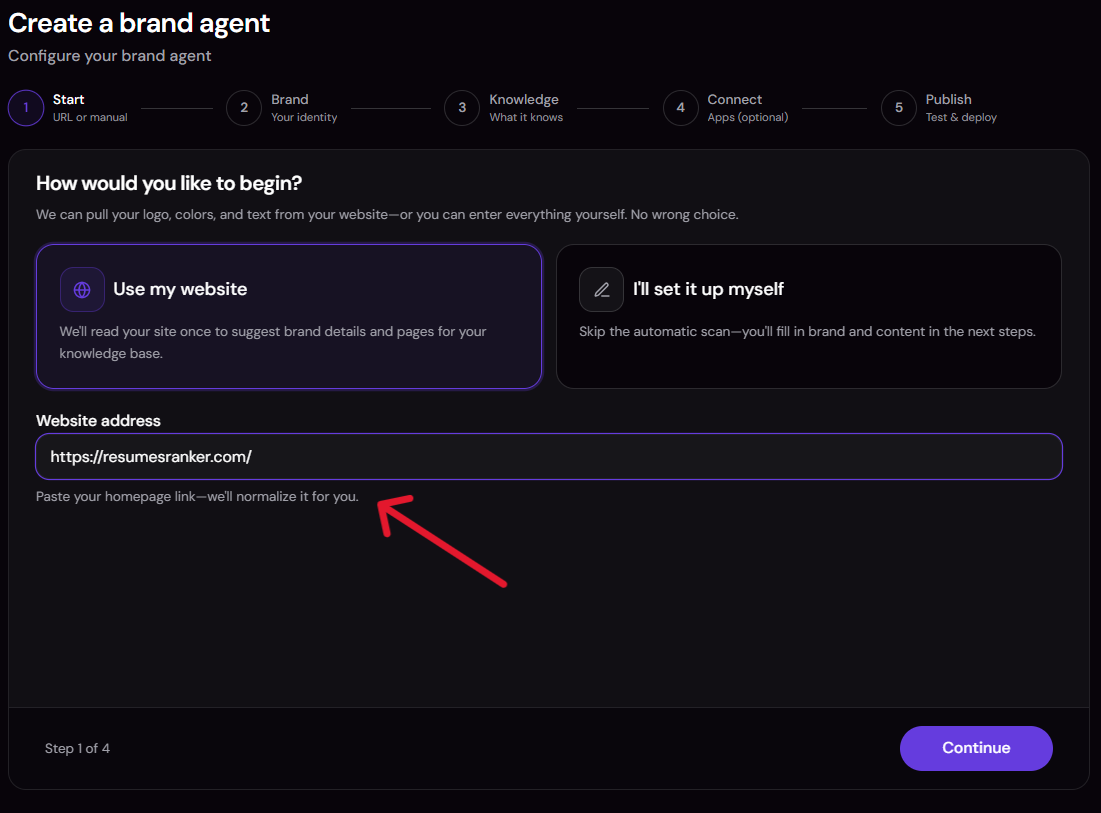
- Paste your website URL. The platform crawls your website pages (pricing, blogs, FAQ, about, docs) and extracts a brand snapshot: your logo, colours, tone of voice, offerings, and positioning. Everything it reads gets indexed into a searchable knowledge base that the agent uses to answer questions.
- Scrape more pages for deeper coverage. Add more URLs from your site (blog posts, product pages, policy pages, help docs) so the agent has more real content to draw from.
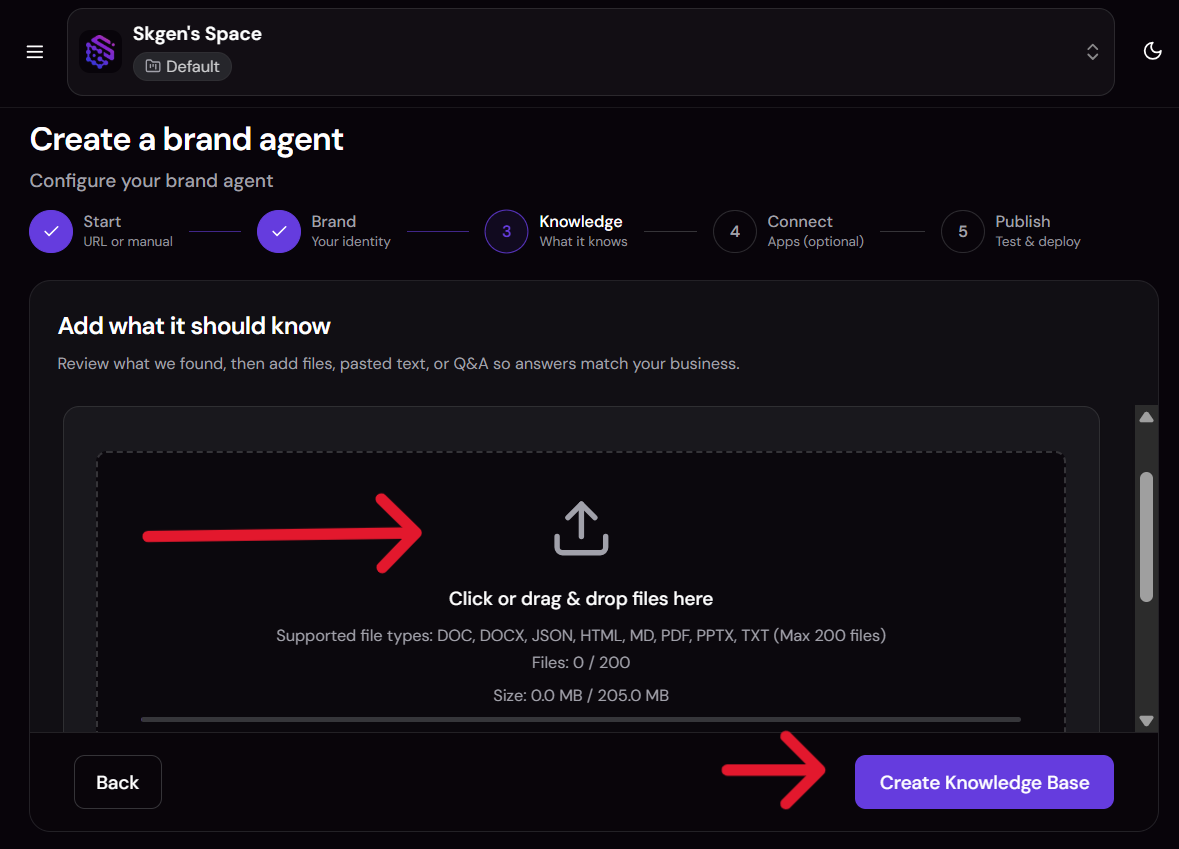
- Add file sources of your own. No public site to scrape, or private content that isn't published anywhere (internal pricing sheets, policy PDFs, a Q&A doc your support team already uses)? Upload it directly. Files you add are indexed the same way as scraped pages and carry equal weight in the knowledge base.
Step 2: Review the pre-built instructions and agent role
Every AI Receptionist template ships with instructions already written for this exact job: answer from the knowledge base, disclose when it doesn't know something, and follow a fixed sequence before booking anything. Open the instructions editor to:
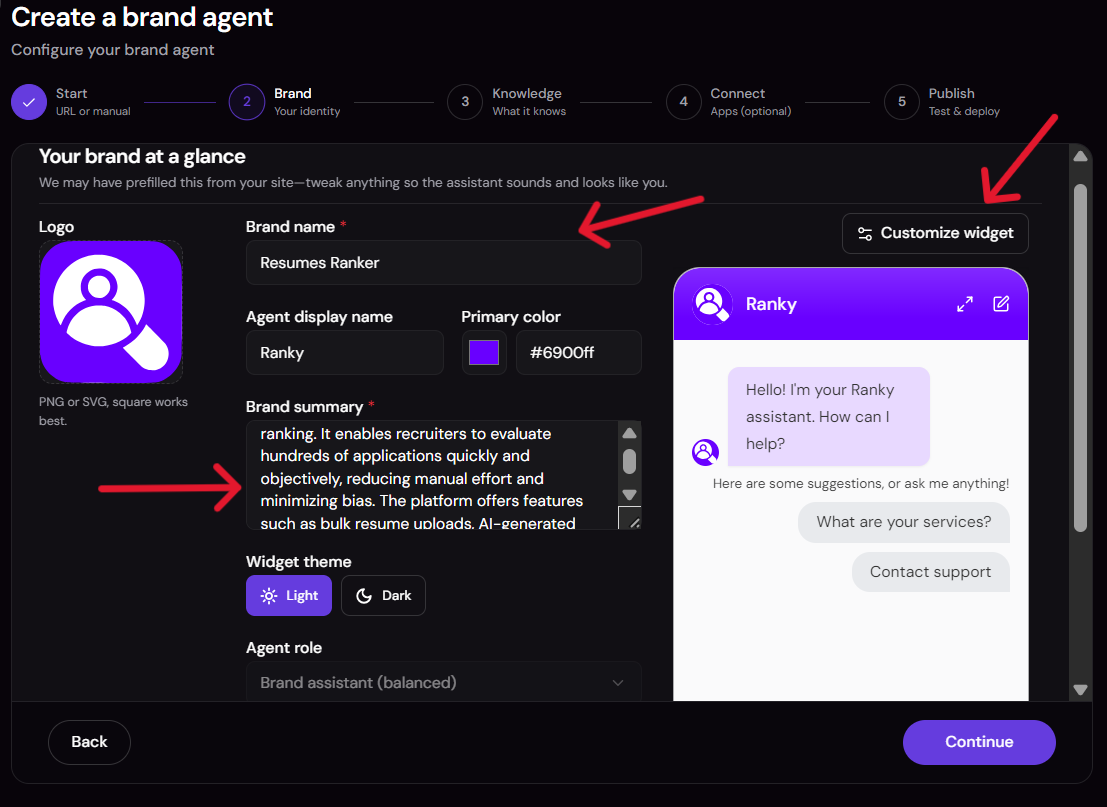
- Tone and booking rules: Read through the defaults and adjust wording to match how your team actually talks to customers.
- Agent role: Pick "Support Receptionist" vs. "Sales Receptionist" if you want it to lean more toward answering or more toward qualifying and booking.
- Escalation rules: Tighten what it should say when a visitor asks for a refund, a discount, or anything outside your published policies.
Step 3: Connect Google Calendar
Connectors and tools come pre-attached. Once your Brand Agent is built, the template lands you in Agent Space with the calendar connector and file-search tool already wired in for this use case, so you aren't starting from an empty toolbox. You only need to authenticate them or add more from the connector marketplace if you want to extend the agent further
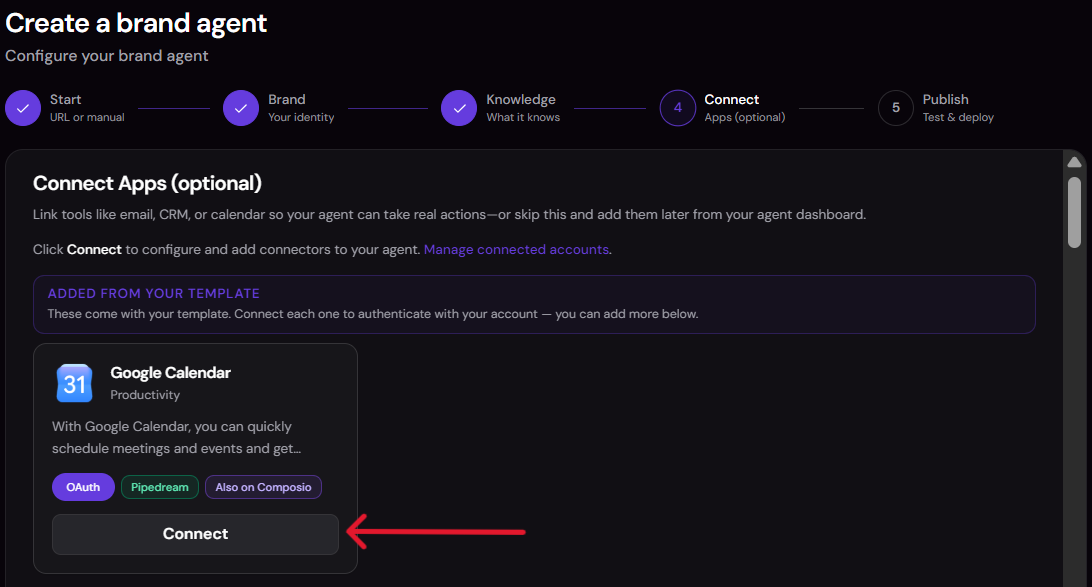
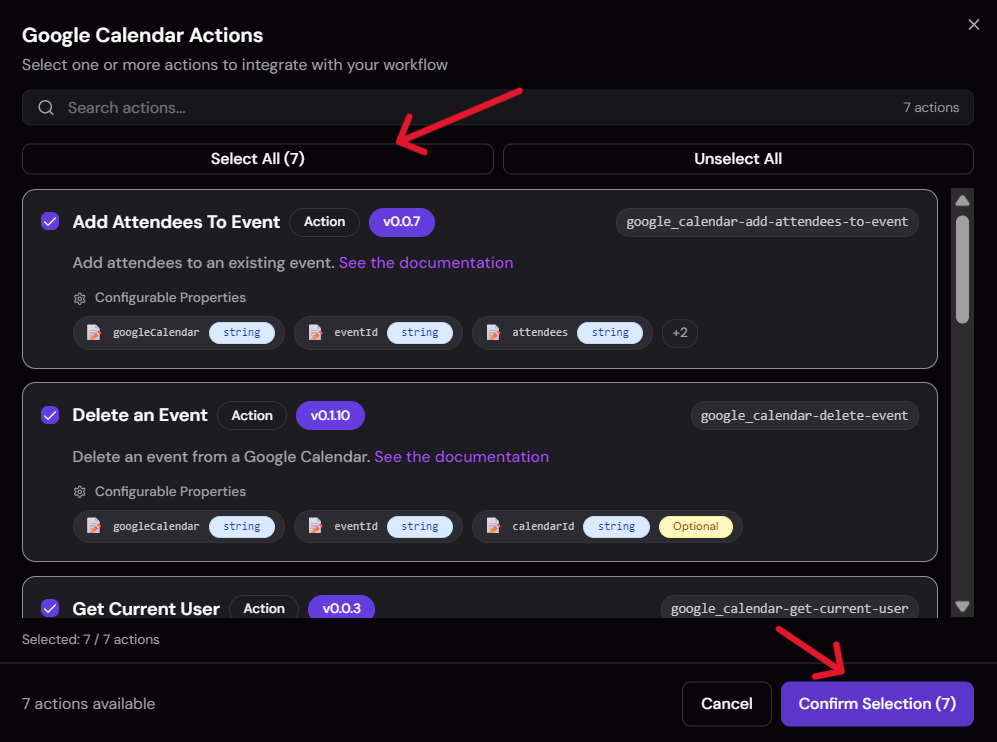
Booking only works once a calendar is authenticated. Connect Google Calendar through OAuth (one click, sign in and grant access). This gives the agent permission to check the current date/time and create events on your behalf.
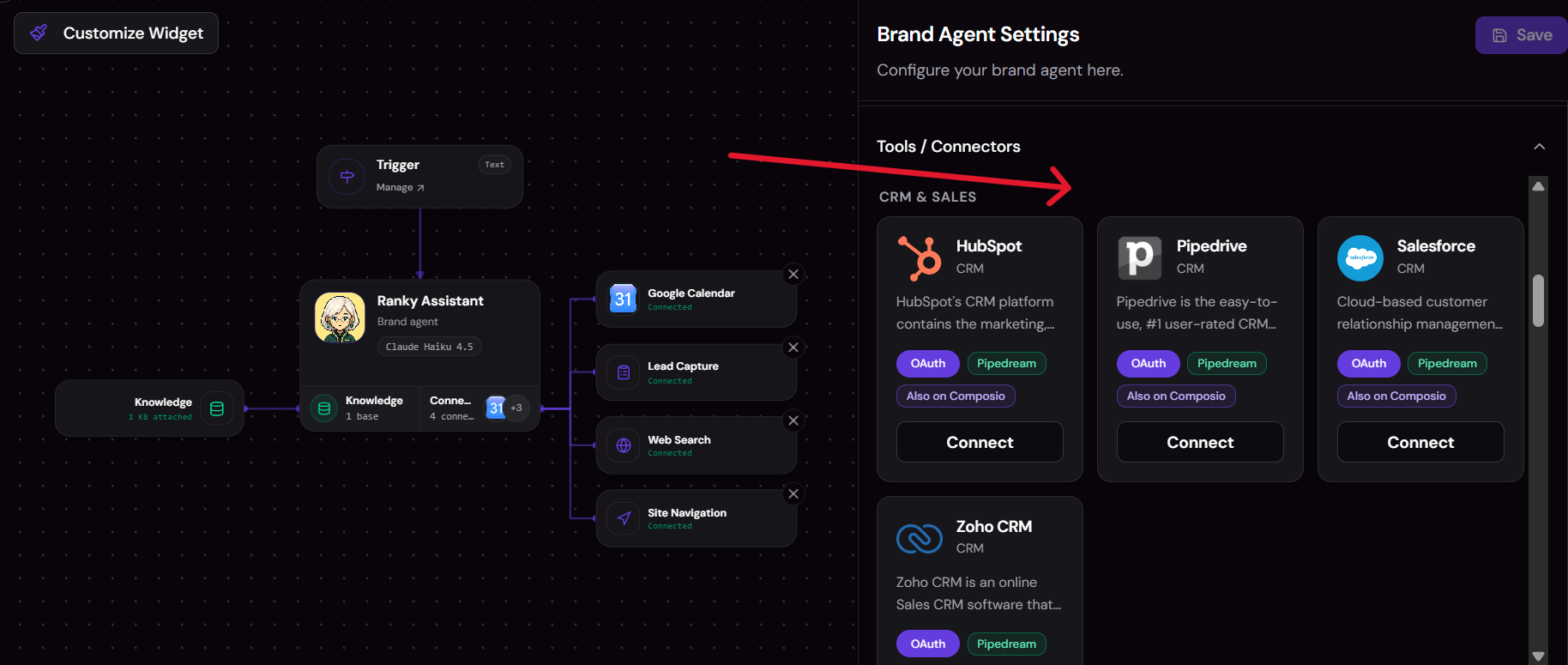
 Want a different calendar app, or an extra tool like a CRM update or a Slack notification when a demo gets booked? Add it from the same connector marketplace you saw in Step 2 — swap Google Calendar for Cal.com, Calendly, or Outlook, or stack on additional connectors without rebuilding the agent.
After you've configured the Calendar tool, your agent space looks something like this.
Step 4: Run a test
Before going live, send the agent a sample FAQ ("Do you offer a free trial?") and **a sample booking request **("Book a demo for Thursday at 3pm ET") in the test window.
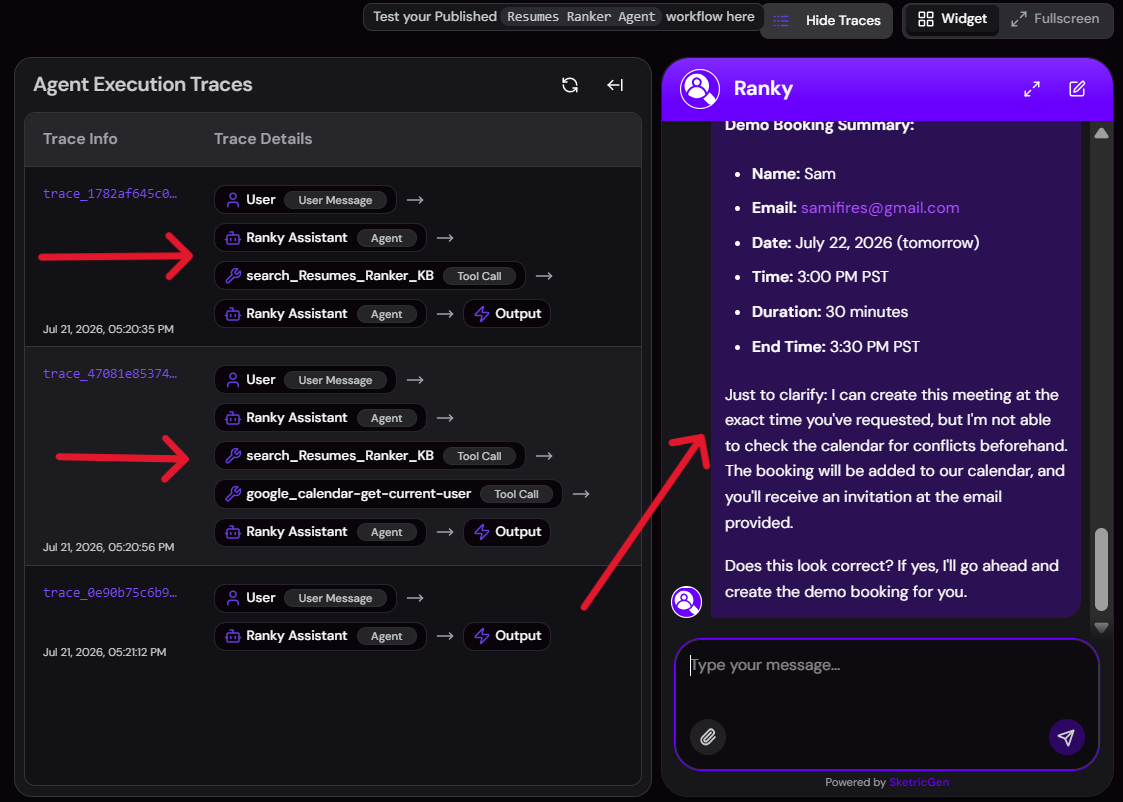
Check that the FAQ answer actually comes from your site content (not a generic AI answer), and that the booking flow collects name, email, date, and time before it confirms anything. The test view also shows you the trace of what the agent searched and which tool it called, so you can catch a thin knowledge base or a misconfigured connector before a real visitor does.
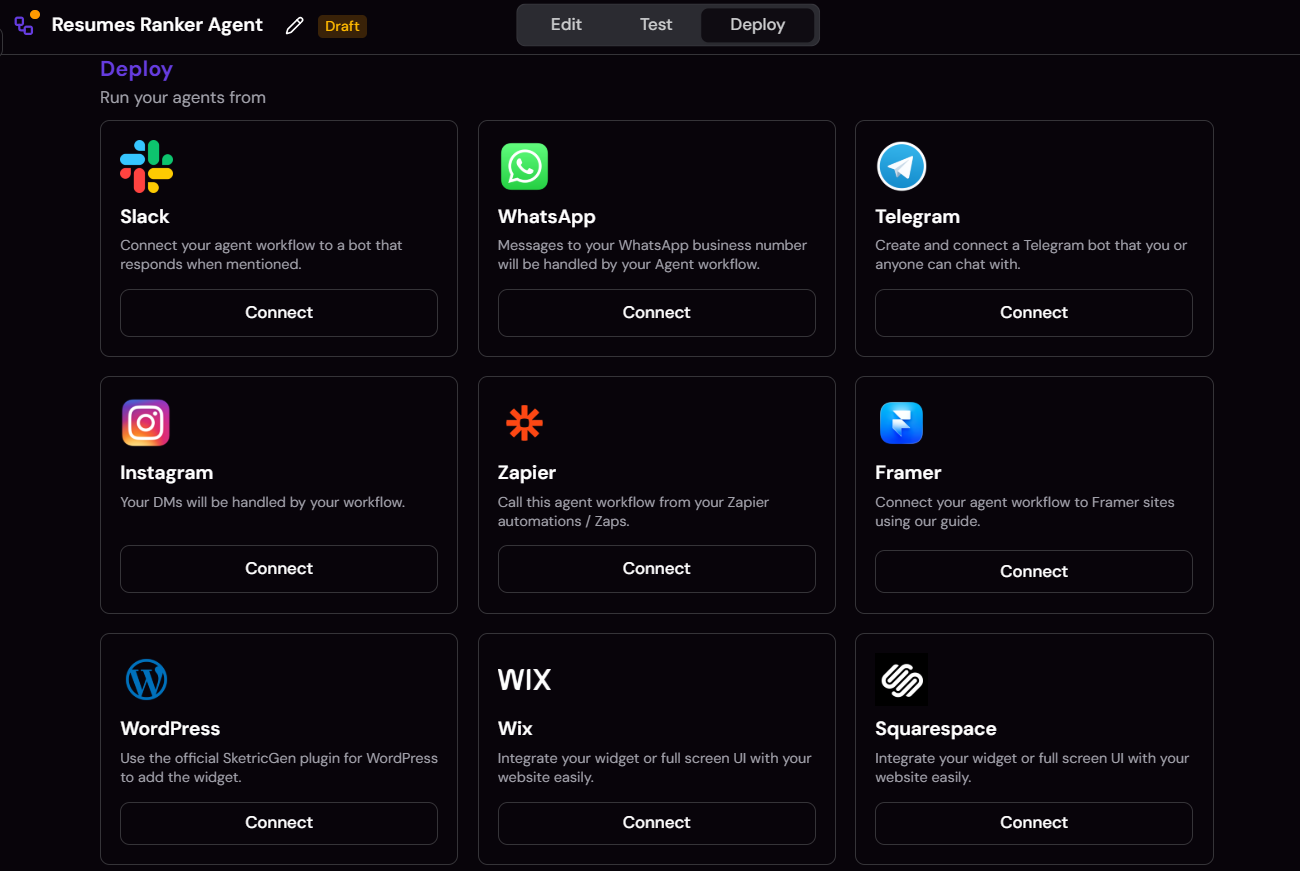
Step 5: Deploy
Once the test conversation looks right, deploy the agent to your website widget or a chat channel. It goes live immediately, no further configuration needed.
Common issues and fixes
- Answers are generic or wrong: knowledge base is thin. Go back to Step 2 and scrape more pages or upload additional file sources.
- Booking doesn't complete: Google Calendar isn't connected or lost permission. Reconnect it in Step 4 and re-run the test.
- Agent says it can't check availability: expected, not a bug. It books an exact requested time without checking for conflicts.
- Off-brand answers: tighten the agent's instructions in Step 3, or add more knowledge base content in Step 2.
Who it's for
- Small businesses and solo brands fielding the same pricing and availability questions on repeat, with no staff to cover evenings, weekends, or after-hours demo requests. This is the fastest-growing use case for AI receptionists right now, and the one this template is built around first.
- Agencies standing up a branded receptionist for client websites without writing a new FAQ script and booking flow by hand for every client. Point the Brand Agent at a client's URL and the knowledge base, tone, and colours are extracted automatically.
- SaaS and service teams that want visitors to self-serve on pricing and feature questions, then book a demo directly, so pre-sales stops eating support hours.
- Local service businesses — clinics, dental offices, law firms, salons, and other appointment-driven businesses — where most inbound calls are the same handful of questions (hours, pricing, insurance, availability) and a missed after-hours call is a lost booking.
- Solopreneurs and consultants who don't have a receptionist or a support team at all, and need one agent to cover both jobs without hiring.
No website yet? Upload a knowledge base (Q&As, policies, pricing) instead of a URL, as covered in Step 2.
Requirements
- A website URL (recommended) to build your brand snapshot and knowledge base automatically. A site with at least a pricing page, an FAQ or help section, and an about page gives the agent enough to work with; thinner sites will need file uploads to fill the gaps.
- Or a knowledge base you upload yourself — Q&As, policy documents, and pricing sheets — if you don't have a public site to scrape, or need to include private content.
- A Google Calendar account to connect via OAuth (swappable for another calendar app such as Cal.com, Calendly, or Outlook).
- No developer or coding experience. Everything in the setup guide above is point-and-click.
- About 10 minutes to review the pre-built instructions and run a test before deploying.
Apps used
| App | What it's used for | Typical permission scope |
|---|---|---|
| Brand Knowledge Base (File Search) | Search your brand snapshot and site/document content to answer FAQs | Access to your extracted brand data and uploaded files only |
| Google Calendar | Get current user/timezone, create the demo event, add the visitor as an attendee | Calendar read (current user) and write (create event, add attendee) on your primary calendar |
Customization: swap Google Calendar for another calendar app (e.g. Cal.com, Calendly, Microsoft Outlook Calendar), or add more tools from the 2,000+ connectors in the Sketric App Marketplace (CRM updates, Slack alerts, email notifications), and update the agent's instructions to match.
How the SketricGen agent works
Maps directly to the five pieces above, pre-built and pre-connected:
- Knowledge base — the Brand Agent step builds it automatically from your website URL (or uploaded docs), and grows as you scrape more pages or add files.
- Intent detection — the agent classifies each visitor message as a question or a booking request, using its pre-built instructions.
- Grounded answering — for questions, it searches your knowledge base and answers in your brand's tone; if nothing matches, it says so instead of guessing.
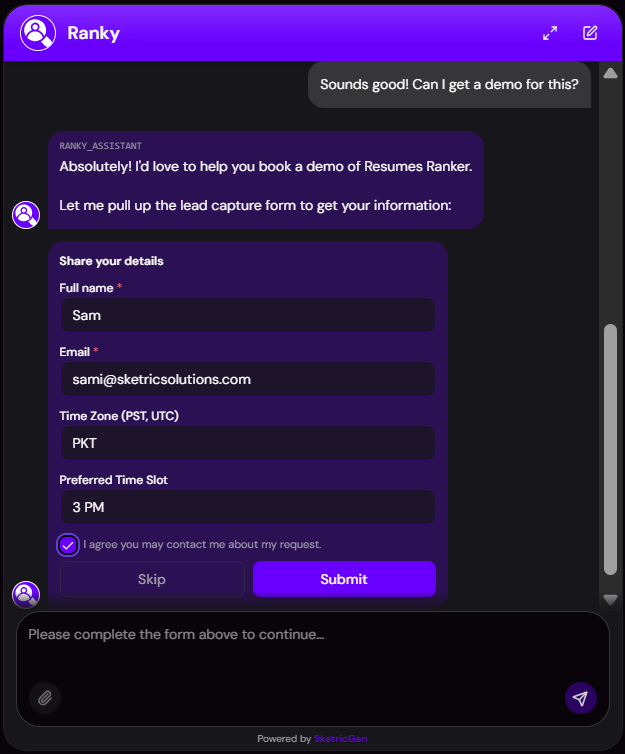
- Booking flow — for bookings, it collects name, email, date, time, and timezone, restates the full booking with an availability disclaimer, and waits for confirmation.
- Calendar integration — on confirmation, it creates the Google Calendar event and adds the visitor as an attendee, or explains exactly what failed if it can't.
Use cases
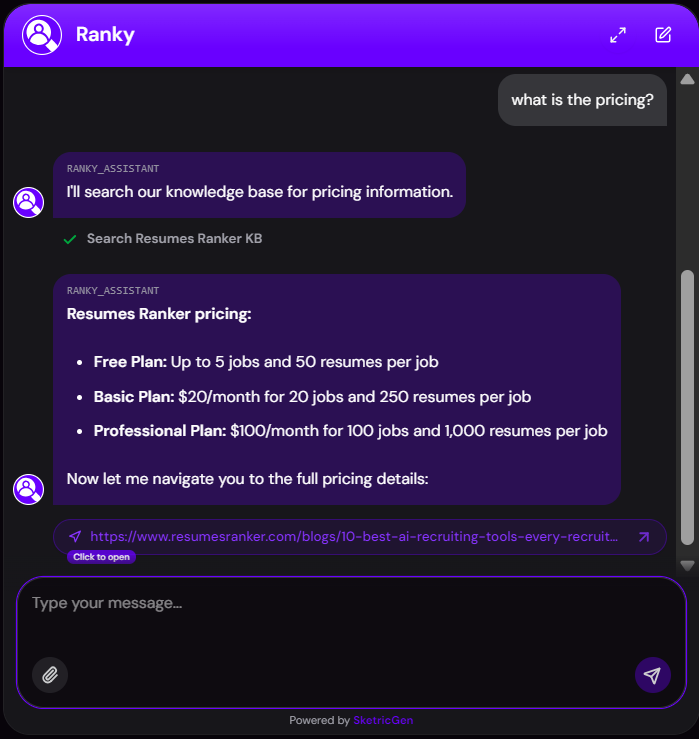
- 24/7 FAQ coverage — visitors get accurate answers from your own site content, any time, without waiting on business hours.
- Demo booking from chat — "I want to schedule a demo" becomes a confirmed Google Calendar event, no manual back-and-forth.
-
Agency client setup — point the Brand Agent at a client's URL and stand up a branded receptionist in minutes.
-
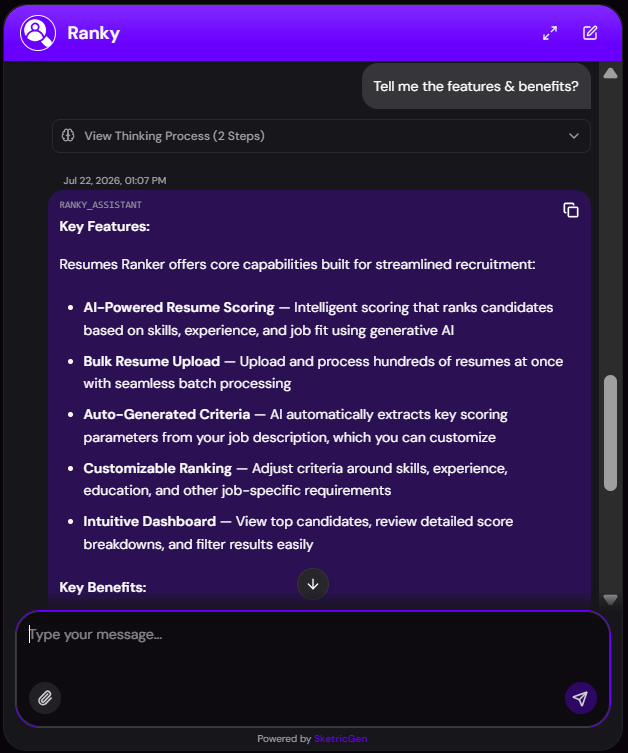
Pre-sales qualification — answer pricing and feature questions consistently before a prospect reaches a human.
Example prompts and outputs
Example 1: FAQ
Visitor: "Do you offer a free trial?"
Output: The agent searches your knowledge base and answers directly from your site content (e.g. trial length, signup link) in your brand's tone. If your site doesn't mention a trial, it says it doesn't have reliable information instead of guessing.
Example 2: Demo booking
Visitor: "Can I book a demo for Thursday at 3pm ET?"
Output: The agent checks your knowledge base for booking rules, collects name and email, restates the full booking with the availability disclaimer, and asks for confirmation. On confirmation, it creates the Google Calendar event and adds the visitor as an attendee.
Example 3: Calendar not connected
Visitor: "Book me in for tomorrow at noon."
Output: The agent explains that the booking couldn't be completed because the calendar isn't connected, and offers any contact guidance from your knowledge base instead of claiming the booking succeeded.
Why you need this template
- Setup starts with your website, not a blank canvas. Brand snapshot and knowledge base are built automatically from your URL, and grow as you scrape more pages or add files.
- Skips the engineering. Same five-piece architecture you'd build with Claude Code or Codex — already wired, tested, and production-ready.
- One agent, two jobs: FAQs and booking, without a separate router or extra agents to manage.
- Goes further than an AI answering service. Most answering services just take a message; this agent answers the question and books the meeting in the same conversation.
- Honest by design: the agent discloses what it can't do (check availability, detect conflicts) instead of overpromising.
- No code, no call center: live in about 10 minutes, with no separate AI receptionist software to install or maintain.
FAQs
An AI receptionist is an agent that answers visitor questions and handles scheduling on your behalf, so you don't need a person or a phone system to cover FAQs and demo booking.
Build a searchable knowledge base from your content, add intent detection to separate questions from booking requests, ground every answer in that knowledge base only, build a booking flow that confirms before creating anything, and connect a calendar API to create the event. See the five-piece breakdown above for the full architecture.
Yes. The underlying architecture — knowledge base, intent detection, grounded answering, booking flow, calendar integration — is buildable with any coding agent or custom stack. It typically takes a few days to wire up and test properly. This template gives you the same five pieces pre-built, pre-tested, and pre-connected, live in about 10 minutes.
An AI FAQ agent answers only from a defined knowledge base instead of open-ended AI knowledge. This template builds that knowledge base automatically from your website (or your uploaded docs), so answers stay grounded in what you actually publish, not general internet knowledge.
No. An AI answering service typically takes a message and someone follows up later. This template answers the visitor's question directly from your knowledge base and can complete a calendar booking in the same conversation, with no callback required.
For most small businesses, yes: the two most common gaps are repetitive FAQs eating staff time and after-hours visitors leaving without booking. This template covers both without hiring, and setup takes about 10 minutes rather than the multi-day build a custom receptionist stack would need.
No. A website URL is the fastest way to build your knowledge base automatically, but you can also upload your own Q&As, policies, and pricing docs directly if you don't have a site to scrape.
No, and it tells visitors that. It creates an event at the exact time the visitor requests and adds them as an attendee, but it does not check free/busy status or existing conflicts.
No. Google Calendar is the default, but you can swap it for another calendar app (e.g. Cal.com, Calendly, Microsoft Outlook Calendar) from the Sketric App Marketplace and update the booking instructions to match.
The agent says it doesn't have reliable information rather than guessing. It never fills gaps with assumptions or general knowledge.
An empty or outdated knowledge base (answers get generic or wrong), Google Calendar disconnected or missing permissions (booking fails or the invite doesn't send), and vague visitor messages (the agent asks a clarifying question instead of guessing intent).
Related templates
View more
WhatsApp AI Agent
Answers WhatsApp support questions from your brand knowledge base, and never invents a policy.

Data Analysis and Visualization
Turn an uploaded spreadsheet, CSV, or PDF into answers, charts, and a shareable report, all from chat. A single no-code agent validates and profiles your file, answers your questions with statistics computed in code (never guessed), builds the right chart for each finding, and delivers a polished DOCX or PDF report on request, with an optional executive slide deck.
Smart Email Manager
Gmail triage, drafted replies, Notion logging, and Slack alerts in one agent.

Instagram DM Automation
Auto-replies to Instagram DMs from your brand's own knowledge base.

SEO Optimized Blog Writer
Research your brand, search intent, SERPs, and competitors through a ten-stage editorial workflow to create original, source-backed articles built to rank.

Product Analytics & Reporting Analyst
Answer product and website questions with reproducible GA4 and Microsoft Clarity analysis, clear charts, caveats, and next experiments.